
When browsing the web, encountering errors can be frustrating, especially when it comes to secure websites. One of the most common errors is the ERR_SSL_PROTOCOL_ERROR, which usually signals a failed SSL handshake between your browser and the website’s server. This error is often linked to an issue with HTTPS connections, which secure your data when communicating with websites. In this article, we’ll explain what causes the ERR_SSL_PROTOCOL_ERROR, how to fix it, and offer preventive measures for smoother browsing.
What is ERR_SSL_PROTOCOL_ERROR?
The ERR_SSL_PROTOCOL_ERROR occurs when your browser is unable to establish a secure connection to a website through SSL (Secure Sockets Layer). SSL/TLS protocols are responsible for encrypting data between your browser and the server to keep your information safe. If something disrupts this secure handshake, the ERR_SSL_PROTOCOL_ERROR error is triggered, leaving you unable to access the site.
This error might appear on Google Chrome, Microsoft Edge, or other browsers. It can stem from various issues such as problems with your computer’s date and time settings, outdated browsers, SSL certificate misconfigurations, or conflicts with extensions and security software.
Common Causes of ERR_SSL_PROTOCOL_ERROR
1. Incorrect Date and Time Settings
One of the most common causes for the ERR_SSL_PROTOCOL_ERROR is incorrect date and time settings on your system. SSL certificates are time-sensitive, and an incorrect system clock can lead to issues when your browser tries to verify the certificate.
2. Outdated Browsers
Browsers that haven’t been updated for a while might not support the latest SSL/TLS protocols required for secure connections. This is often the case with older versions of browsers such as Google Chrome, Firefox, or Edge.
3. SSL/TLS Protocol Incompatibility
Websites might use outdated SSL or TLS versions that modern browsers no longer support. Similarly, if your browser is set to only accept older protocols, it may not be able to communicate properly with a site that uses newer SSL/TLS protocols.
4. Corrupted Browser Cache and Cookies
A corrupt cache or stored cookies can cause problems when establishing secure connections. Over time, data accumulated in your browser can interfere with the proper functioning of SSL/TLS handshakes, leading to the ERR_SSL_PROTOCOL_ERROR.
5. Firewall and Antivirus Interference
Sometimes, firewalls and antivirus software might block certain secure connections. While these programs are designed to protect you, they can also mistakenly block legitimate websites or SSL connections, causing errors like ERR_SSL_PROTOCOL_ERROR.
6. Browser Extensions and Plugins
Certain browser extensions, especially those related to security, can interfere with SSL/TLS handshakes. If an extension is misconfigured or outdated, it might block the secure connection, causing this error.
7. Server Misconfigurations
The website server might have SSL/TLS misconfigurations, such as using expired certificates or improper server settings. This is a common issue for webmasters but can also lead to visitors encountering errors like ERR_SSL_PROTOCOL_ERROR.
How to Fix ERR_SSL_PROTOCOL_ERROR
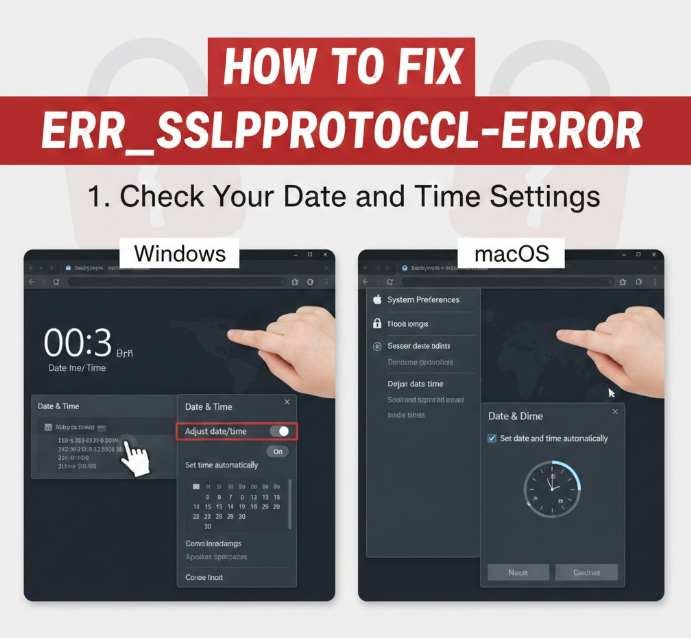
1. Check Your Date and Time Settings
Since SSL certificates are time-sensitive, having incorrect date and time settings on your computer can prevent a successful SSL handshake. To fix this, check your system’s date and time settings:
- For Windows: Right-click on the time at the bottom-right corner of your screen, select “Adjust date/time,” and ensure both date and time are correct.
- For macOS: Go to “System Preferences,” click “Date & Time,” and verify that your system clock is accurate.
2. Clear Your Browser Cache and SSL State
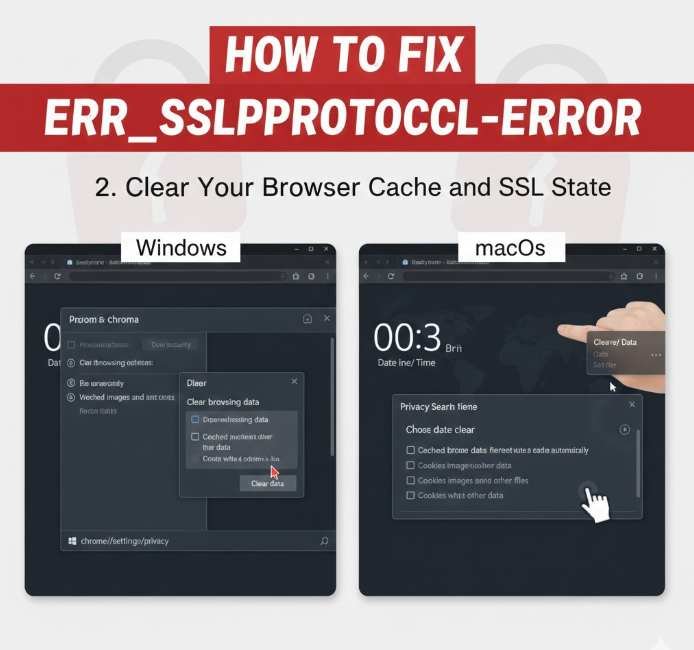
Clearing your browser’s cache and SSL state can help resolve many SSL-related issues. Here’s how to do it:
- Google Chrome:
- Go to Chrome settings.
- Under “Privacy and Security,” click “Clear browsing data.”
- Select “Cached images and files” and “Cookies and other site data.”
- Click “Clear Data.”
- To clear the SSL state, type “chrome://settings/privacy” in the URL bar, then scroll down to click “Clear browsing data” and “Clear SSL state.”
- Microsoft Edge:
- Click on the three dots in the upper-right corner.
- Select “Settings,” then “Privacy, search, and services.”
- Under “Clear browsing data,” click “Choose what to clear” and select “Cached images and files” and “Cookies.”
- Click “Clear now.”
3. Update Your Browser
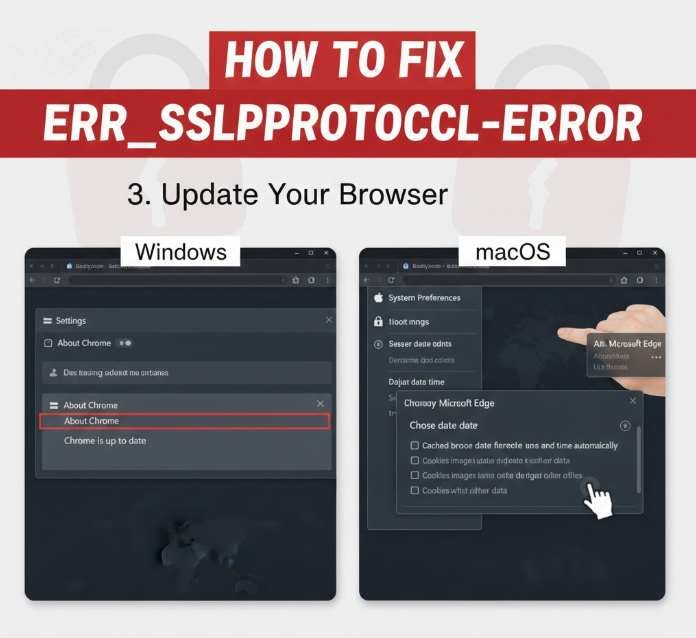
Outdated browsers often lack support for the latest SSL/TLS protocols. Make sure you’re using the latest version of your browser to prevent connection issues:
- For Google Chrome: Go to “Settings” > “About Chrome” to check for updates.
- For Microsoft Edge: Go to “Settings” > “About Microsoft Edge” to update your browser.
4. Disable Antivirus and Firewall Temporarily
Firewalls and antivirus software might block secure connections. Temporarily disable these to check if they are causing the ERR_SSL_PROTOCOL_ERROR:
- For Windows Defender Firewall: Go to “Control Panel” > “System and Security” > “Windows Defender Firewall” > “Turn Windows Firewall on or off.”
- For Antivirus Programs: Check your antivirus settings to temporarily disable web protection features and see if the issue resolves.
Note: Remember to enable your antivirus and firewall after troubleshooting to keep your computer safe.
5. Disable Browser Extensions
Extensions can sometimes interfere with SSL connections. To test if one of your extensions is causing the error:
- Open an Incognito or Private browsing window and try accessing the website again.
- If the error doesn’t occur, disable extensions one by one to find the culprit.
- In Chrome, go to “chrome://extensions/” and toggle off individual extensions.
- In Edge, go to “edge://extensions/” and disable extensions.
6. Enable SSL/TLS Settings
Ensure that your browser supports modern SSL/TLS protocols. Here’s how to check:
- For Google Chrome:
- Go to the URL bar and type “chrome://flags.”
- Search for SSL/TLS settings and ensure “TLS 1.2” or “TLS 1.3” is enabled.
- For Microsoft Edge:
- Open the Edge settings page.
- Go to “Privacy, search, and services” and scroll down to find SSL settings.
- Ensure that “TLS 1.2” or “TLS 1.3” is selected.
7. Contact the Website Admin
If none of the above solutions work, the problem could be on the server side. Reach out to the website administrator or support team, and ask if there’s an issue with the website’s SSL certificate or configuration.
Preventive Measures to Avoid ERR_SSL_PROTOCOL_ERROR
- Always keep your browser updated to ensure compatibility with modern SSL protocols.
- Regularly check and fix your system’s date and time settings to avoid SSL certificate issues.
- Use reliable and up-to-date antivirus and firewall software that doesn’t block secure connections unnecessarily.
- Clear your cache periodically to prevent old data from causing conflicts.
- Ensure website administrators regularly renew SSL certificates to avoid security errors.
Conclusion
The ERR_SSL_PROTOCOL_ERROR can be caused by a variety of factors, from incorrect system settings to browser conflicts and server misconfigurations. By following the steps outlined above, you can resolve this error and restore secure access to websites. Additionally, taking preventive measures can help you avoid encountering the issue in the future. If the error persists, don’t hesitate to contact the website’s administrator to ensure the issue is resolved on their end.
FAQs
1. Can the ERR_SSL_PROTOCOL_ERROR happen on all browsers?
Yes, it can happen on any browser, including Google Chrome, Microsoft Edge, and Firefox. The steps to fix it may differ slightly depending on the browser.
2. How do I check if my browser supports the latest SSL/TLS versions?
You can check and enable SSL/TLS protocols in your browser settings, typically under advanced security or privacy options.
3. Does disabling antivirus or firewall solve the ERR_SSL_PROTOCOL_ERROR?
In some cases, disabling antivirus or firewall temporarily may resolve the error. However, always remember to turn them back on after troubleshooting.
For More Update and Buzz visit : Bizz Buzz